


Image to PDF & PDF Reader
3.061.00 Reviews
App Specs
- Version
- 1.0.3
- Updated On
- License
- Free
- Downloads
- 100,000+
- Developer
- JK Breaking News
- Categories
- Productivity
- Platform
- Android
Screenshots
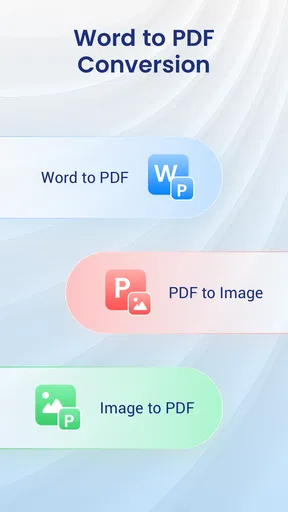
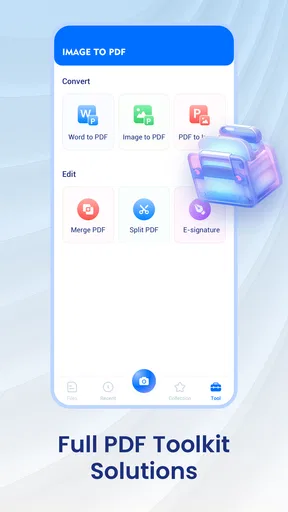
 Analysis by AppCompare
Turning a paper receipt, signed form, or whiteboard note into a PDF sounds simple until you need the file immediately and your phone is the only tool available. Image to PDF & PDF Reader is built around that practical gap: it combines image-to-PDF conversion with basic document viewing and editing in a free productivity app from JK Breaking News. I found its appeal less in being a complete document office and more in making a quick file-processing task feel manageable on a phone.
The app is suitable for Everyone and runs on Android 8.0 or later. Its current version is 1.0.3, and its store presence has already reached over 100K installs. That reach makes sense for a tool aimed at occasional, everyday document jobs rather than specialist publishing. The average rating is 3.7 from around 79 ratings, which suggests a useful but not universally smooth experience. My overall impression is that it can be a convenient first stop when the job is “make this image a PDF and let me check it,” while users needing advanced document control should keep a fuller editor or scanner app in mind.
Where connectivity changes the experience
I find connectivity matters most at the handoff: the conversion can be a small, phone-based task, while receiving the source or delivering the finished file may depend on another service and a reliable connection. For a smoother routine, I’d prepare and check the PDF first, then share it when the network is steady; next, it’s worth looking at what image-based documents can—and cannot—preserve.
Useful when the document task starts on your phone
The most convincing use case is a short mobile workflow. Imagine receiving a photo of a signed page in a messaging app before leaving for work. You open the picture, bring it into the converter, create a PDF, inspect the result, and prepare it for the next step. That is a much more focused job than opening a large office suite with tools you do not need.
The same applies to a student photographing handwritten notes, a tenant saving a photographed inventory sheet, or a small business owner turning a product document into a file for a customer. In these situations, the value is not advanced design. It is the ability to move from an image to a more widely accepted document format without reaching for a computer.
Connectivity becomes important at the edges of that workflow. The image may arrive through an online service, and the finished PDF may need to be sent through email, cloud storage, or a work platform. The app’s role is the conversion and review stage. I would not treat it as a replacement for the communication service that delivers the source image or sends the finished file.
That distinction matters because a smooth conversion does not guarantee a smooth handoff. If you are working in a location with unreliable reception, plan the task around the parts that require your connection. Have the source image available before starting, and avoid assuming that every later sharing step will be available at the exact moment you finish editing.
Worth Reading Before You Choose

EA SPORTS FC Mobile 26 Is a Bigger Football Game, but It Takes Time

Flipboard Shows What News Apps Must Do Beyond the Feed

Switching to Android Auto Means Rethinking Your Driving Routine

Google Calendar Makes a Crowded Week Easier to Manage

Ludo King Makes the Most of the Minutes Between Plans

Baby Panda World Brings Quick Play to Modern Phones, but Its Game Library Feels Busy
What to expect from image-based documents
An image-to-PDF tool preserves the visual appearance of the source, which is helpful when the original is a photograph or scan. It is not the same as turning the picture into editable text. If you need to correct a misspelled name inside a photographed page, search through its words, or rearrange the actual text, this type of workflow may feel limited compared with an OCR-focused scanner.
I also recommend checking the page before sending it. A photograph can include a tilted edge, shadows, a finger in the corner, or background clutter. Converting it to PDF does not automatically make the source look like a clean office scan. The practical tip is to crop and improve the image before conversion when possible, then use the reader to inspect the final page at a comfortable zoom.
The important trade-off is convenience versus document intelligence. This app is attractive when the picture itself is the document. It is less suitable when the words inside that picture must become searchable, selectable, or heavily rewritten.
Working in changing mobile conditions
Phones are often used while walking between meetings, sitting in a waiting room, or standing beside a printer. That makes a compact workflow valuable, but it also exposes the app to interruptions that are rare on a desktop. A call, a low battery, a crowded screen, or a sudden switch to another application can break concentration.
I would handle important files in small stages rather than taking several pictures and postponing every decision until the end. Convert a page or a small group, inspect it, and then continue. This reduces the chance of discovering later that one image was rotated, poorly framed, or added in the wrong order.
For multi-page work, naming discipline helps more than people expect. Give the source images clear names before processing if your phone allows it, or at least keep them together in a dedicated folder. A PDF made from several similar-looking pages is much easier to verify when the original sequence is obvious.
Recovery when the result is not right
The real test of a document utility is not only whether the first attempt works. It is how easy it is to recover when the result needs another pass. With this app, I would keep the original images until the PDF has been opened and checked. That simple habit gives you a way back if a page is missing, the order is wrong, or the source quality is not good enough.
A sensible recovery routine is straightforward. First, reopen the finished PDF and inspect every page, not just the cover. Next, compare questionable pages with their source images. If the problem comes from the photograph, retake or clean up that image rather than repeatedly rebuilding the same poor source. If the issue is the page sequence, reconstruct the file using a clearly ordered set of images.
This is also where connectivity can complicate matters. If the PDF has already been uploaded or sent, correcting it may create duplicate versions in a chat or shared folder. I suggest adding a clear revision marker to the filename before sharing a replacement. That is not an app feature; it is a small workflow choice that prevents recipients from confusing an earlier file with the corrected one.
For a document that matters legally, financially, or professionally, do not rely on a thumbnail preview alone. Open the complete file, check that every page is readable, and confirm that the version you send is the one you intended. A quick converter can save time, but it cannot replace a final human inspection.
Keeping data use under control
The app is free, which removes a purchase decision for someone who only occasionally needs image-to-PDF conversion. Still, “free” should not be confused with “costless” in a mobile workflow. Photos can consume storage, large PDFs can use mobile data during sharing, and repeated uploads can create unnecessary copies.
If you are on a limited connection, do the preparation locally on your phone as far as your workflow permits, then wait for a reliable network before sending a large finished document. This is especially sensible for several high-resolution photographs. A smaller, cleaner source image can make the final file easier to handle, but I would avoid reducing quality so far that small print becomes unreadable.
Privacy also deserves a practical approach. Receipts, identity documents, medical paperwork, and contracts should be handled carefully. Keep only the copies you need, remove failed attempts when appropriate, and check where you share the finished PDF. The app’s core purpose is document processing, but the moment a file leaves the phone, the receiving service and recipient become part of the privacy picture.
Another useful habit is separating temporary conversion material from permanent records. Keep the original only when it has a purpose, such as proof of the photographed condition or a backup for later correction. Otherwise, a phone can quickly fill with duplicate images and multiple versions of the same PDF. This matters more for frequent users than for someone converting a single page once a month.
How it compares with familiar alternatives
Compared with a general office suite, this app feels more direct for a narrow task. A full suite is usually the better choice when you need to write a document from scratch, manage tables, or make extensive text changes. For a photo that simply needs to become a PDF and be viewed, those extra tools can add friction.
Compared with a dedicated scanning app, the decision is less one-sided. A scanner-focused alternative may offer stronger capture guidance, automatic edge detection, cleanup controls, OCR, or searchable output. Those features matter when you are digitizing a stack of paperwork or building an archive. Image to PDF & PDF Reader is more appealing when you already have images and want a lightweight conversion and reading path.
Compared with a cloud-first document service, the biggest question is how much of your workflow depends on an active connection. Cloud platforms are convenient for collaboration, shared access, and moving files between devices, but they also make the network part of ordinary use. This app fits better when the immediate task is on one Android phone and you want to avoid opening a broader workspace for a small conversion.
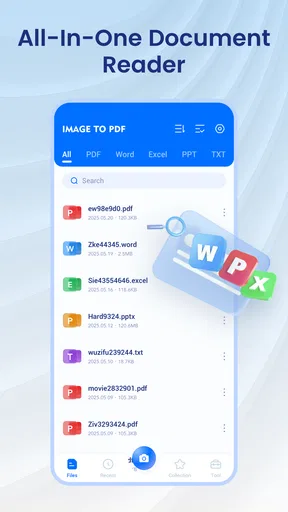
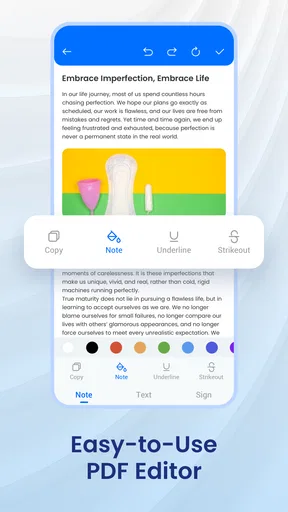
I would skip it if your main requirement is reliable OCR, professional page cleanup, batch management for a large archive, or detailed annotation and form filling. I would also choose another option if your work depends on a synchronized document library across several devices. The app’s strengths are narrower and more practical: image input, PDF output, viewing, and quick edits in one place.
Who will get the most from it
This is a good fit for students, travelers, freelancers, families, and small teams that occasionally need to turn photographs into shareable PDFs. It can also help anyone who receives paperwork as images and wants to review it in a document format before forwarding it.
It is less compelling for a user who already has a trusted scanner application with OCR and automatic cleanup. Installing another tool only makes sense if the existing workflow is inconvenient or if a simple image-to-PDF route is what you actually need. More features are not automatically better when the job is small.
The free price makes experimentation easy, and the Everyone rating keeps its intended audience broad. I would still test it first with a harmless sample page before processing sensitive paperwork. That lets you learn the conversion flow, inspect the reading experience, and decide whether the editing controls are enough for your habits without risking an important original.
My connectivity verdict
After using it as a focused productivity tool, I see Image to PDF & PDF Reader as a practical bridge between phone photos and ordinary PDF workflows. Its usefulness is strongest at the moment when you have an image in hand and need a readable document quickly. The app does not need to replace every scanner, editor, or cloud service to earn a place on a phone.
My recommendation comes with a clear boundary: treat it as a conversion and review utility, not as a complete document-management system. Keep originals until the result is checked, plan sharing around your connection, and inspect every page before sending important files. Those habits address the main risks of a mobile document workflow more effectively than simply choosing a different app.
JK Breaking News has positioned this free Android app in a useful middle ground. Its 3.7 average and around 79 ratings suggest that prospective users should expect a functional tool rather than a universally polished replacement for established document suites. If your needs are occasional image conversion, quick viewing, and modest PDF handling, I think it is worth trying. If your work depends on searchable text, large-scale scanning, or dependable cross-device collaboration, a specialized alternative will be the better long-term choice.
Pros
- Quickly converts photos and scanned documents into PDF files.
- Supports multiple images in one PDF document.
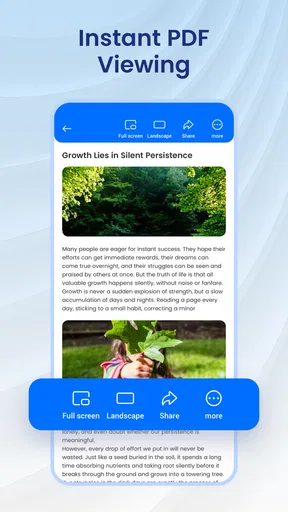
- Built-in reader makes it easy to open created PDFs.
- Useful crop
- rotate
- and reorder tools improve document layout.
- Simple interface suitable for occasional users.
Cons
- Some advanced tools may require a premium subscription.
- OCR accuracy can vary with handwriting or low-quality images.
- Large image batches may take longer to process.
- Ads can interrupt the experience in the free version.
- PDF editing options may be limited compared with full office apps.
FAQs for Image to PDF & PDF Reader
What is Image to PDF & PDF Reader used for?
Image to PDF & PDF Reader is designed to convert pictures and scanned documents into PDF files directly from a mobile device. It can be useful for digitizing receipts, notes, forms, schoolwork, and other paperwork. The app also lets you open and read existing PDF documents, making it a practical combination of a basic scanner, converter, and PDF viewer.
How do I convert images into a PDF with this app?
After opening the app, you generally select images from your gallery or capture new pages with the camera. You can arrange the pages in the desired order and, depending on the available tools, crop or adjust them before creating the PDF. Once the pages look correct, choose the PDF conversion option, name the file, and save or share the finished document.
Does Image to PDF & PDF Reader require an internet connection?
Basic tasks such as viewing stored PDFs and converting images that are already saved on your phone can usually be completed offline. An internet connection may still be needed for advertisements, cloud-related features, online sharing services, updates, or optional downloads. If privacy and mobile data usage are important to you, it is worth checking the app permissions and testing the main tools in offline mode.
Can I edit, combine, or organize PDF files in the app?
The app is primarily intended for image-to-PDF conversion and PDF reading, so its editing capabilities may be more limited than those of a full professional PDF editor. Depending on the version, you may be able to reorder image pages, create multi-page documents, rename files, or manage saved PDFs. Advanced functions such as changing existing text, signing documents, or merging complex files may not be included.
Is Image to PDF & PDF Reader safe for private documents?
Before scanning passports, financial records, medical paperwork, or other sensitive material, review the app’s privacy policy and requested permissions. Image and PDF files may remain stored locally, but some features can involve advertising, analytics, cloud services, or sharing tools. Avoid granting unnecessary access, use your device’s screen lock, and delete temporary files or exported documents when they are no longer needed.


